Junos Configuration Archival With Oxidized

One of the great things about Junos is the automatic on-box configuration backup and instant rollback, right? Seriously, if you screwed things up in the recent past, you can easily recover by popping into configure mode, rolling back and committing your config. Plus, there’s amazing tools that prevent the walk/drive of shame like commit confirmed that go hand-in-hand. What I would have given all those years ago to have had tools like that in the bag when I was working on other platforms!

All that stuff aside, the on-box stuff is no substitute for long-term archival. Historical records of where system configurations have gone over the course of time is a big deal, operationally speaking. In Cisco-land, one of the old stand-by tools is RANCID. And yes, it works for Junos as well. But what if there was something better? What if there was something a bit more modern that better integrated with an up-to-date toolkit? Enter Oxidized.

Oxidized talks to a bunch of platform types, and outputs a bucket of different formats. You can do simple things like output the latest config as a text file, or you can output git repos either by groups of devices, or a single repo. You can even do things like have the tool perform HTTP POST operations to custom tools you’ve created. Backing up to the git repos for a second… Right along with that, you can have Oxidized push the local repo to a remote git repo as well, be that on the local network, or in the cloud somewhere! On top of all this, in addition to having its own nice web UI, Oxidized has really great integration with LibreNMS (which I use myself in my Homelab).

In the example I’m going to show, I’m going to use the Dockerized version of Oxidized to archive the configuration of my 3x EX2300-C VC at home. It will backup the config to a local git repo as well as push the config to a private GitHub repo. All communication over the network will be secured using SSH with ED25519 keys. No passwords are sent over the network at all! Ready? Let’s get started. I’m going to assume you’ve already got Docker and Docker Compose installed. If you don’t, get that done. There are more guides out there than I can count on that topic, so go ahead and locate one, and come back. 🙂

Ready? Ok, let’s go. I’m going to assume we’re building this on a Linux machine. If you’re not, as always “your mileage may vary”. Please feel free to comment below and contribute any adjustments you had to make to get things cooking on different platforms!

I’ll start by making a directory structure in my home directory where I’ll be working, then setting up my SSH key that the solution will use.

$ mkdir oxidized

$ cd oxidized

$ mkdir oxidized-volume

$ cd oxidized-volume

$ mkdir -p .config/oxidized

$ mkdir .ssh

$ chmod 700 .ssh

$ cd .ssh

$ ssh-keygen -t ed25519 -f id_ed25519 -C oxidized@blog.jasons.org
Generating public/private ed25519 key pair.
Enter passphrase (empty for no passphrase):
Enter same passphrase again:
Your identification has been saved in id_ed25519
Your public key has been saved in id_ed25519.pub
The key fingerprint is:
SHA256:[redacted] oxidized@blog.jasons.org
The key's randomart image is:
+--[ED25519 256]--+
[  also redacted  ]
+----[SHA256]-----+

$ cat id_ed25519.pub
ssh-ed25519 [redacted yet again] oxidized@blog.jasons.org

Next, we’ll create our docker-compose.yaml file in the top-level directory (at the same level as the oxidized-volume directory, above).

---
version: '3'

services:
  oxidized:
    image: oxidized/oxidized:latest
    container_name: oxidized
    tty: true
    volumes:
      - ./oxidized-volume:/home/oxidized
    environment:
      - CONFIG_RELOAD_INTERVAL=3600
    restart: unless-stopped
    networks:
      - oxidized

networks:
  oxidized:
    name: oxidized
    driver: bridge
    attachable: true
    driver_opts:
      com.docker.network.bridge.name: br-oxidized

Next, setup the GitHub Repository. In my case, it’s going to be called jcostom/oxidized, and it will be private. In other words, I’ll be the only one who will be able to see or access the repo. Below, you’ll see the repo settings I chose.

Creating a Private GitHub Repo

After you’ve created the repo, you’ll need to add your SSH key to the repo. Hit the Settings link on the top row, and on the left side, choose Deployment Keys. Add your SSH key.
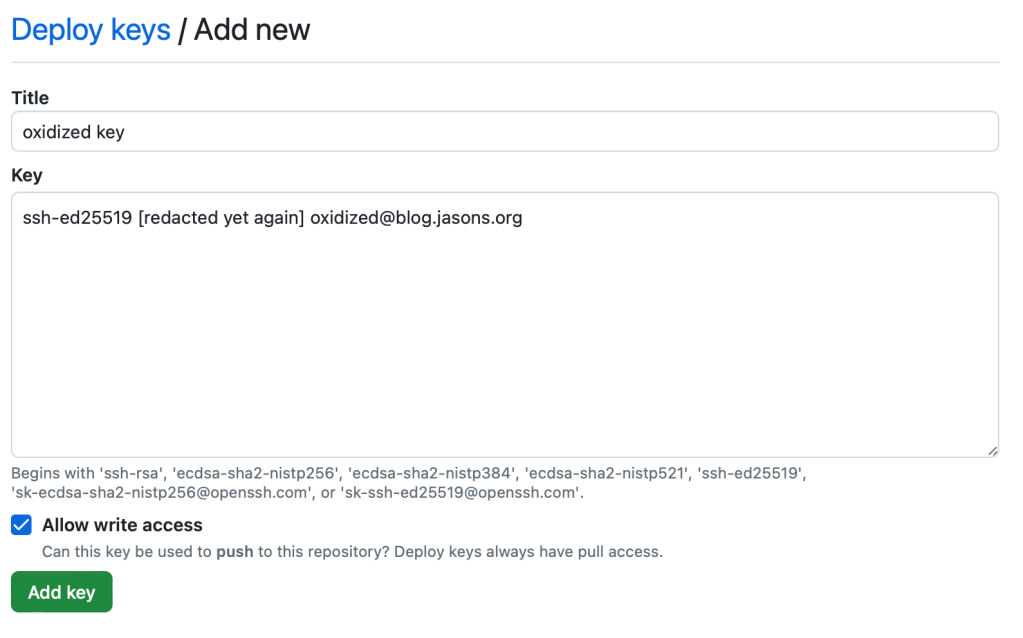
Adding an SSH Key

Up next, let’s prepare our Junos devices to be backed up by Oxidized. To do this, we’re going to create a fairly restricted user class and a login that Oxidized will use. The authentication method will be… you guessed it! The SSH key we just generated before. So, the set of commands we’ll need to deploy to our Junos devices will look something like this:

set system login class oxidized permissions view-configuration
set system login class oxidized allow-commands "(show)|(set cli screen-length)|(set cli screen-width)"
set system login class oxidized deny-commands "(clear)|(file)|(file show)|(help)|(load)|(monitor)|(op)|(request)|(save)|(set)|(start)|(test)"
set system login class oxidized deny-configuration all
set system login user oxidized class oxidized
set system login user oxidized authentication ssh-ed25519 "ssh-ed25519 [redacted yet again] oxidized@blog.jasons.org"

Ok, so commit that config and you’re ready on the Junos side of things. Now we just need to finish up configuring Oxidized and we’ll be all done! Let’s create our Oxidized config. I won’t go through all the intricacies of this sample config, and yes, I’ll grant you that this is probably slightly more complex than it needs to be. That said, it’s ready to be expanded to accommodate additional system types really easily by adding additional groups and mappings. The 2 files, config and router.db both go in $DIR/oxidized-volume/.config/oxidized.

First, the config file:

---
model: junos
interval: 3600
use_syslog: false
debug: false
threads: 30
timeout: 20
retries: 3
prompt: !ruby/regexp /^([\w.@-]+[#>]\s?)$/
rest: 0.0.0.0:8888
next_adds_job: false
vars:
  auth_methods: [ "publickey" ]
  ssh_keys: "/home/oxidized/.ssh/id_ed25519"
  # log: /home/oxidized/.config/oxidized/oxy.log
groups:
  jnpr:
    username: oxidized
    model: junos
pid: "/home/oxidized/.config/oxidized/pid"
input:
  default: ssh
  debug: false
  ssh:
    secure: false
output:
  default: git
  file:
    directory: "/home/oxidized/.config/oxidized/configs"
  git:
    single_repo: true
    user: oxidized
    email: oxidized@blog.jasons.org
    repo: "/home/oxidized/.config/oxidized/configs.git"
hooks:
  push_to_remote:
    type: githubrepo
    events: [post_store]
    remote_repo: git@github.com:jcostom/oxidized.git
    publickey: /home/oxidized/.ssh/id_ed25519.pub
    privatekey: /home/oxidized/.ssh/id_ed25519
source:
  default: csv
  csv:
    file: "/home/oxidized/.config/oxidized/router.db"
    delimiter: !ruby/regexp /:/
    map:
      name: 0
      model: 1
      group: 2
model_map:
  juniper: junos

Then the router.db file:

myswitch.mydomain.com:juniper:jnpr

We’re just about ready to start things up! The Oxidized Docker container runs as an unprivileged user (hurray!), with both UID and GID 30000. So, we need to set the file ownership. You’ll need to change the ownership of the oxidized-volume and everything below it. The command is: sudo chown -R 30000:30000 oxidized-volume

Finally. We’re ready to start this thing up. There will be one final hiccup though. We’ll get through it. I promise. A final check – this is what your directory structure should look like… I’m going to assume you understand Unix file permissions. The permissions below are pretty basic – nothing crazy.

drwxrwxr-x 30000    30000        4096 Apr 27 11:16 ./oxidized-volume
drwxrwxr-x 30000    30000        4096 Apr 27 09:38 ./oxidized-volume/.config
drwxrwxr-x 30000    30000        4096 Apr 27 11:15 ./oxidized-volume/.config/oxidized
-rw-rw-r-- 30000    30000          36 Apr 27 10:02 ./oxidized-volume/.config/oxidized/router.db
-rw-rw-r-- 30000    30000        1120 Apr 27 10:06 ./oxidized-volume/.config/oxidized/config
drwx------ 30000    30000        4096 Apr 27 11:16 ./oxidized-volume/.ssh
-rw-r--r-- 30000    30000         106 Apr 27 10:21 ./oxidized-volume/.ssh/id_ed25519.pub
-rw------- 30000    30000         419 Apr 27 10:21 ./oxidized-volume/.ssh/id_ed25519
-rw-rw-r-- jcostom   jcostom       435 Apr 27 09:38 ./docker-compose.yaml

Ready to launch? Let’s Gooooooo! Get into that top level directory where your docker-compose.yaml file is and run the command docker-compose up. Provided you followed all the steps in order, and everything’s working, the oxidized/oxidized:latest image got pulled from DockerHub and launched per what’s in your Compose file. The first time you run things, you’re going to see an error that says Rugged::SshError: invalid or unknown remote ssh hostkey. That’s because the image doesn’t have the GitHub SSH key stored. We’re going to fix that though! Get to another terminal window and run this command: docker exec -it -u 30000:30000 oxidized /bin/bash

That’s going to drop you into a bash shell inside the Oxidized container. The first time out, we’re going to manually push to GitHub. Ready to fix it? Here goes.

cd ~/configs.git
git push --set-upstream origin master

You’ll get asked about accepting the SSH key, you’ll (naturally) say yes, the push will work, and you’re done. You can exit that shell with a Control+D. You can check the repo to see the push was successful. Here’s what mine looks like after that first push.
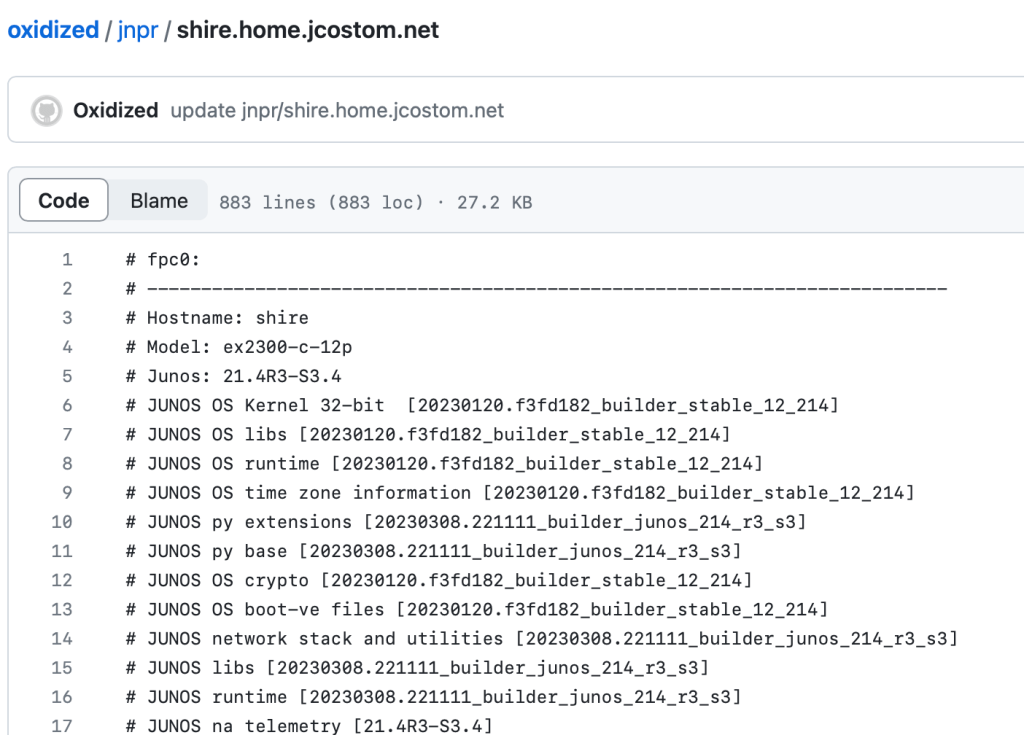
config backup in GitHub

Guess what? You’re all done! You’ll probably want to hit Control+C in that Docker Compose session, and restart with a docker-compose up -d, which will start the services in the background, rather than the foreground. Every hour, Oxidized will poll your systems to see if the configs have changed. If so, the config will be backed up and pushed out to your private GitHub repo.

With the GitHub UI being as good as it is, you can probably see why I don’t bother with the Oxidized Web UI. Between it and the integration with LibreNMS, I simply have no real need for yet another way to consume the tool!
One Crazy Summer

Hey automators!

Summer’s been absolutely nuts. Between work stuff, family stuff, running here and there, and of course, the odd project or two, I’ve been just plain stretched for time.

Stay tuned. I’ll be coming back around shortly. I’m working on some things. Preview?

Well, Remember how Logitech decided that the Harmony Remote, one of the best things ever to happen to the world of universal remotes was going to be taken out back and killed? Yeah, I was pretty mad about that too. So, I went looking for something else to solve some automation challenges with that. So, that’s coming.

What else? Tried to buy a Raspberry Pi lately? Heh. Yeah, me too. I decided to try a different fruit for a change. So far, so good. More on that later.

More still? There’s an update on that printer situation. The dryer too.

How about a Raspberry Pi-based network console server for my network equipment?

Hang in there family, it’s coming.

So, You Should Dump IPsec, Right?

Wrong. Probably.

So, Since I just posted the other day about dumping my pile of Python scripts and IPsec VPNs and moving to Tailscale for my personal use case, several folks have sparked conversations with me about the topic.

In my case, it made complete sense to do something else. I was using a solution that was the essentially held together with bubblegum, duct tape, and baling wire. It was fragile, it kept breaking, and let’s be real – I was bending the solution into a shape it wasn’t designed to be used in – which is why it kept breaking in the first place.

You see, IPsec tunnels are intended to work when you’ve got stable, fixed endpoints. Over time, things have been done so that endpoints can become dynamic. But typically just one endpoint. Suddenly, with two dynamic endpoints, results become… Unpredictable. I think that’s a kind way of putting it even. That right there, explains my repeated breakage problems.

So, if you’re still using traditional firewall & VPN in a more traditional use case, then yes, keep doing things more traditionally – keep on using IPsec VPNs. It’s quite honestly the best tool in the bag for what you’re hoping to accomplish in terms of securing data that’s in motion, provided you’re able to meet the bars of entry in terms of hardware support as well as supported feature set.

So, get rid of your firewalls? Not a chance. Get rid of my SRX firewalls and EX switches? No way, no how. You can have my Junos stuff when you pry it from my cold, dead hands. Heck, I make my living with Junos. But just like the whole story of the guy who only has a hammer and thinks everything is a nail, sometimes you’ve just got to use a different tool to do the job right.

But taking the time to think about how to break up with complexity and technical debt? Yeah, that’s totally worth your time. Sometimes that means saying goodbye to old friends, even when you forced them into places where they didn’t quite fit.

So, in the end the whole square-peg-round-hole thing? Stop doing that.

Ditching Technical Debt. Embracing Simplicity.

I work in networking. I’ve been doing that for a long time now. Along that journey, I’ve also had occasional detours into worlds like generic IT and data security as well. I also do volunteer work at a nonprofit. Plus, like many of you who work in tech, there’s stuff that lives at the home(s) of relatives that you maintain because you’re that sort of person.

Sometimes, you do it cheap, sometimes you do it right, and sometimes you do it somewhere in-between. Like where you’ve got DHCP-assigned WAN interfaces everywhere because everywhere has home-user type Internet services, or less-expensive business-class occasionally. Anyhow, you can’t always count on having the same IP in the same place twice. BUT, you want things to be secured, and you don’t just want wide-open port forwards with plain old Dynamic DNS.

How things used to work, in the IPsec days…

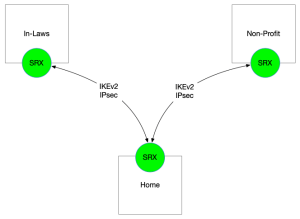
You’ve got some Juniper SRX firewalls you’ve bought for lab work & study previously, you want to make use of them with IPsec VPNs, but to do it right, you really need static IPs. So, what do you do? You fake it. You just pretend you’ve got static IPs on the tunnel endpoints and configure it up. The tunnels come up, you post up your BGP sessions between your st0.0 IFLs, announce some routes, put some reasonable security policies in place. Yes, I did have security policies in there. I was born at night, but it wasn’t last night, guys. But how did I keep it working with IPs changing all the time?

Here’s how I was solving that problem up until fairly recently. I’ve been hacking away at my DNS-o-Matic and DNS Made Easy updaters for a while now. The DME updater was much better, IMHO, as it directly updated a single, private zone that only I ever cared about rather than rely on someone else to sit in the middle and do the updates for me. Plus, I wrote the whole thing from the ground up using DME’s API docs, so I knew exactly how it worked, inside & out. No excuses for it doing anything I didn’t understand, and honestly, I’m really happy with how well it’s been working. It’s been a great opportunity to get better at Python, in particular doing things in a more “Pythonic” way, rather than trying to “just get it done”, or worse, trying to make it work the way I used to do things in Perl or PHP years ago. Is it iconic? Not even close, but it does works pretty darn well.

So, with these containers all ran on Intel NUCs under Ubuntu Linux at each site. There were 1 more container on each of these NUCs as part of this operation. I had a set of Telegram Bots that talked to each other as part of this network to inform each other of site IP changes. So, if HOME changed its IP, the bot at HOME sent a message to the group that included the bots for NONPROFIT and INLAWS. Those bots saw note that the IP had changed and they should go find out the new IP of HOME, so they can update their tunnel endpoints. This in turn fired off a function that used the Junos PyEZ API module to update the IPsec tunnel endpoint IPs.

Did it all work? Yes, believe it or not, this actually all worked. Was it pretty fragile and not for the faint of heart? Oh yeah, for sure. Would I recommend doing it? Not a chance. So much so that I’m not even going to share the code, apart from the DDNS updaters. The other stuff is definitely hackjob territory. So, since it was so fragile and had the tendency to break, what did I do? Well, the first few times, I drove and fixed. Which frankly, sucked. After that, I installed an OpenVPN container at each of the locations. Later, I replaced those with linuxserver/wireguard containers. But, after it all broke like twice in about a month, I’d just about had enough. I cried Uncle and decided I was going to look for some other way to do this.

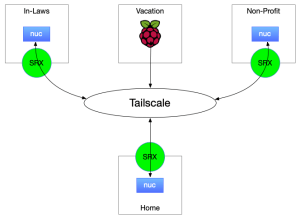
And that’s when my old pal Bhupen mentioned Tailscale to me. I was already into Wireguard. So making it easier, faster, and more useful were all on my short list. Drop the tailscale client on the NUC, get it logged in announcing the local subnet into the tailnet (their name for the VPN instance), making it a “subnet router”, approve the route announcement in the portal and it’s going. I’ve got control over key expiry too. Security policy (naturally) moved from the SRX down to the tailscale gateways, but their ACL language wasn’t too difficult to wrangle. It’s all JSON, so it’s reasonably straightforward.

The new Tailscale VPNs

So, with all the scripts gone and the IPsec stripped away, what’s it all look like? Well, we also added 1 more site into the mix as well – the in-laws vacation place. They bought a place and I stuck a Raspberry Pi up there for future IOT use. Not entirely sure about the “what” yet, but they just updated the HVAC, and it’s all smart stuff, so I expect there will be instrumentation. Maybe something that spits out time series info to Influxdb or somesuch. Who knows? Or Perhaps HomeKit/Homebridge stuff. Time will tell.

In the time since I made the diagrams and wrote this up, things have also changed slightly on the homefront.. I’ve deployed a 2nd subnet router at Home. In the Tailscale docs, they say all over the place not to deploy two subnet routers with the same IP space, and generally speaking, it’s with good reason – traffic destined for those prefixes announced by those routers will be round-robin’d back and forth between them. In my case, since they’re on the same physical subnet, this is essentially ECMP routing, so no big deal. I haven’t validated if they’re really getting the hashing correct, but haven’t really noticed any ill effects yet, so I haven’t shut off the 2nd subnet router yet.

So, by dropping all the BGP sessions, IPsec tunnels, Python scripts, Telegram bots, and Docker containers, things have become much simpler, and much more stable. I’m really happy with Tailscale. So much so that I ended up subscribing at the Personal Pro tier. Great bunch of folks – can’t help but recommend them.

UPDATE: This ended up sparking a bunch of sidebar conversations. Go read what I had to say as a followup

Juniper Switch Port Bounce

How many times do you want to bounce a switchport? Ok, it’s not every 5 minutes, I’ll grant you that. But when you need to, you need to. There’s a handful of strategies we can employ to do this.

Firstly, wild-west style. Just walk right up, yank the cable out, count to 10, and shove it back in. Did it work? Did I grab the right cable? Shoot, I hope so. Wait, Juniper starts counting at zero and Cisco starts counting at 1. Oh crap. I pulled the wrong cable. Let’s go back and do it again. Once more, with feeling, and the right cable this time.

Or, we could take the vastly more measured approach of writing up a full MOP, taking it to the Change Control team, getting it approved, scheduling a change window, coordinating with testing teams, double-checking that we’ve got the right cable, then pull it out, count to 10, plug it back in, have the testers verify that everything works correctly, close out the change window, and then go to bed. But that seems slightly excessive, especially if we really need to bounce that port right now, since the thing on the other end’s not responding and we’re troubleshooting because there’s no connectivity.

What if we take the middle-ground? What if we automated the process a bit to lower the risk of some of the human error factors? If we know what port we want to bounce, we can make that happen in a measured, programmatic way through the Junos Python API, which of course, uses NETCONF under the hood.

Enter the Python script I wrote last night. It’s written (naturally) in Python 3, since Python 2 is now EOL, as of a couple of years ago. Seriously gang, if you’re still writing in Python 2, stop. Anyhow, I’m on the road for a couple of days for work, and after a drive last night, and some time stuck in traffic, and some dinner with a work contact, I was just relaxing, and I wrote this.

Yeah, I know, weird way to relax, right? Ok, I had been pondering this the other day, and just sort of threw the idea in the background for processing at a low priority. You know how that goes. Wrote a bit of code, cranked up the VPN back to home, experimented with bouncing the link connected to a Raspberry Pi on the network at home a few times and here we are.

Feed the script a hostname/IP for the switch, (optionally) a username – if you don’t, it will default to whatever your environment resolves for $USER, (optionally) a password – if you don’t, it will expect to be trying to authenticate using SSH keys, and the port you’re looking to shut and turn back up. Using the Junos Python API, the script connects, does an exclusive config lock, disables the port, commits the config, rolls back, commits again, and finally unlocks the config.

At any rate, here it is, in all its splendor… I also copied and pasted most of the same code and at the same time wrote a “PoE Sledgehammer“. It disables PoE on the switch, then rolls back the change. Useful if you need to do something like simultaneously reboot every phone and/or WLAN AP connected to the switch at the same time. As the name implies, it’s kind of a blunt instrument. Use it with caution…