Automatic Deployment of Let’s Encrypt Certs

Many of you already use Let’s Encrypt certificates in various capacities to provide secure connectivity to applications and devices. Most of the time, these apps and devices automatically reach out, get certs issued, installed and everything just works. That’s cases like traefik, or certbot with apache/nginx, etc.

Then there are those “other” use cases you’ve got. Like say, a custom certificate for a Plex server, or maybe even something more exotic like a certificate for an HP printer. How do you take care of those in an automated, “hands-off” sort of way? How do you make it work so that you’re not having to set reminders for yourself to get in there and swap out certs manually every 3 months? Because you know what’s going to happen right? That reminder’s going to go off, you’re going snooze it for a couple of days, then you’ll tick that checkbox, saying, “yeah, I’ll do it after I get back from lunch” and then something happens and it never gets done. Next thing you know, the cert expires, and it becomes a pain in the rear at the worst possible moment.

That’s where deploy-hooks come into play. If you’ve got a script that can install the certificate, you can call that script right after the cert has been issued by specifying the --deploy-hook flag on the certbot renew command. Let’s look at an example of how we might add this to an existing certbot certificate that’s already setup for automatic renewal. Remember, automatic renewal and automatic installation are different things.

First, we’ll do a dry-run, then we’ll force the renewal. It’s really that easy. Check it:

sudo certbot renew --cert-name printer.mynetwork.net --deploy-hook /usr/local/sbin/pcert.sh --dry-run

Once this process is completed, the automatic renewal configuration for printer.mynetwork.net will include the deploy-hook /usr/local/sbin/pcert.sh. But, what does that really mean? Upon successful renewal, that script will execute, at which point, you’re (presumably) using the script to install the newly refreshed certificate. In this case, the script is unique to that particular certificate. It’s possible to have deploy-hooks that are executed fro EVERY cert as well, by dropping them in the /etc/letsencrypt/renewal-hooks/deploy directory.

For some examples, check out the ones I’m using. Especially interesting (to me at least) is the HP Printer script. That one took a bit of hackery to get working. I had to run the dev tools, and record the browser session a couple of times to get all the variable names straight, and so forth, but once I had it down, it was a snap. Now when the Let’s Encrypt cert updates, within a few seconds, I’ve got the latest cert installed and running on the printer!

What certs will you automate the installation of?

The Dryer Update…

[Any Amazon Links below are Non-Affiliate Links that just go to Amazon Smile]

So, if you think back a bit, you may recall that I was using a Pi 4 for my IoT project that monitored the dryer, shooting out Telegram group messages to the whole family when the dryer was done with the laundry.

Times being what they are, it’s pretty difficult to come by a new Raspberry Pi these days, as I’m sure many of you know. I needed the power of the Pi 4 for something else, at least on a temporary basis. Meanwhile, back at the ranch, a couple of months prior, I’d received a ping from the Micro Center about 45 minutes away informing me that they had a handful of Pi Zero 2 W’s on hand. Those little suckers are super hard to find, so I snapped up my max of 2, along with the GPU I’d been dying to lay hands on for the longest time. For those who care, I finally got an EVGA 3080. Pandemics and supply-chain constraint conditions suck, by the way, in case you were wondering my position on that issue.

So, having my Pi Zero 2 W in the drawer ready to roll, I unscrewed the box from the way that housed the Pi 4, fitted the sensor I had directly onto the Pi Zero 2 W, and scaled down from a 2-project-box solution down to 1 box. Sadly, it sucked. But, it wasn’t the hardware’s fault. In reality it was totally a self-inflicted condition.

I modified (slightly) the pins on the old 801s sensor I had, fitted it onto that new Pi Zero 2W (since it didn’t have any GPIO pin headers soldered on), and sort of Rube-Goldberged it together using 3M VHB tape inside the project box. Total hack job. I thought about using a bunch of hot glue, but then I thought better of it. Why not solder? Honestly? I suck at soldering. One of these days I’ll get around to getting good at it. But that’s not today.

It was wildly unstable. The sensor kept on moving, losing contact with the side of the GPIO holes, it was awful. I all but gave up. I had a brief flirtation with the Aqara Smart Hub and one of their Zigbee Vibration sensors, and believe me, when I say brief, I mean like 12 hours. It just wasn’t fit for the job.

My grand plan with that was to mimic what I was doing over on the washer – write some Python code and run it in a container to query an API somewhere in the cloud every X seconds to see if the thing was vibrating or not, then based on that, work out the state of the dryer to determine if the dryer had started or stopped and then act accordingly. But alas, since step 2 in this plan was a klunker, steps 3 through infinity? Yeah, those never happened.

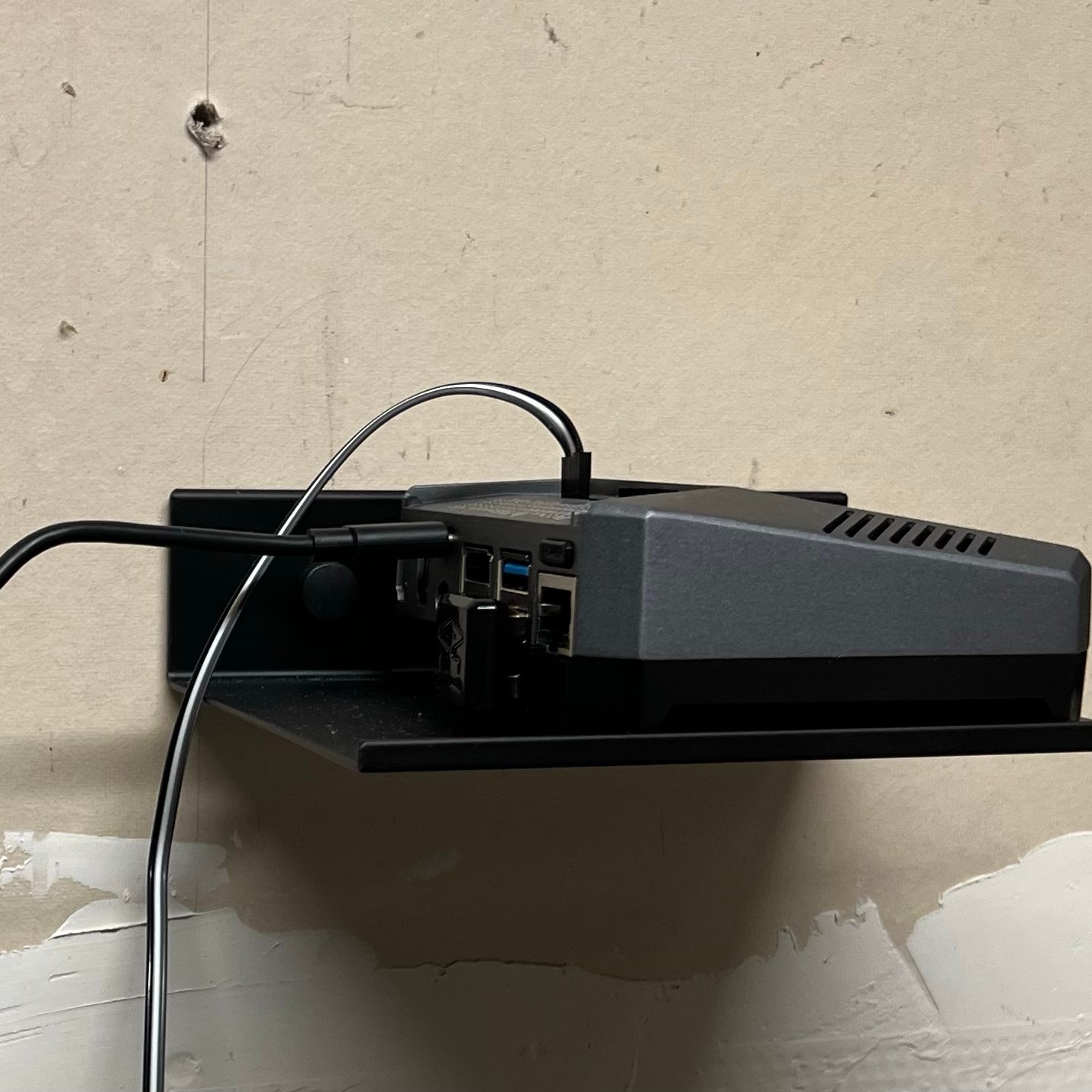
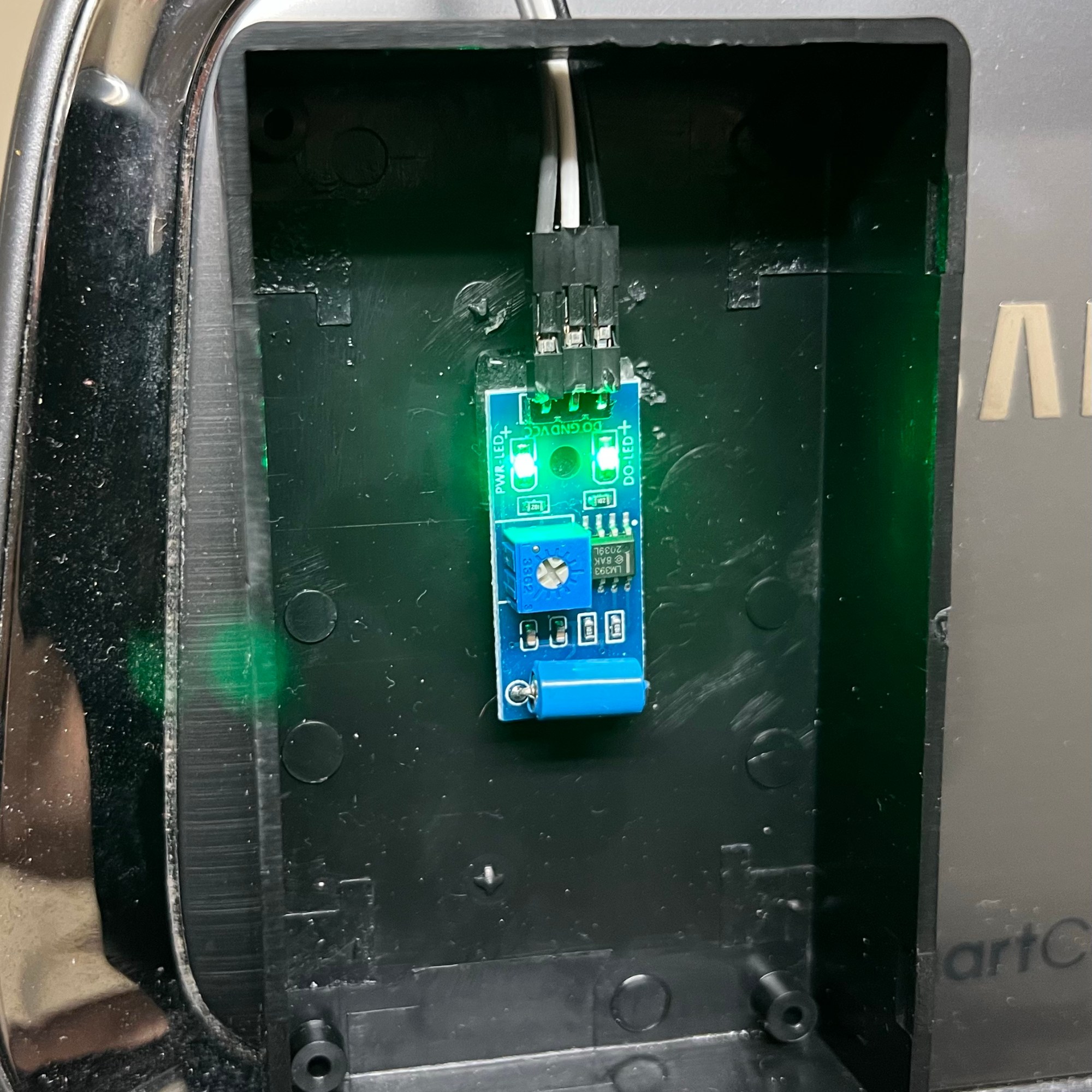
So, back to the drawing board. I found that I couldn’t easily lay hands on a new 801s again, and the project for the Pi4 was now finished, so I had that back. I did find a new vibe sensor – the SW-420. 3 pins instead of 4, but it’s still a digital output that works fine with the Pi, and my existing code worked as-is, so who cares, right? Yeah, I classed the thing up quite a bit more this time too. This time, instead of shoving the Pi inside a project box that’s mounted on the wall running from the SD card, I opted to run in one of those snazzy Argon One M.2 SSD cases booting Ubuntu 22.04 from an M.2 SSD in the basement of the case. I’ve got that sitting on a lovely little shelf mounted just above and behind the dryer, with my 3 GPIO leads running out of the top of the case, directly into the small project box that’s attached to the front of the dryer, inside which is the sensor, which is stuck to the inside of the box using 3M VHB tape. The box itself is stuck to the dryer using VHB tape as well.

In the end, all’s well that ends well. I’ve had to do a good bit more tuning on the SW-420 sensor. It’s been a bit more fiddly than the old 801s was. That one was definitely a plug and play affair. This has required a bit of adjustment on the little potentiometer that’s built into the sensor. Not too bad though. I’ve invested probably a total of 15 minutes of time standing next to the dryer, staring at telemetry, while the dryer is running, or not. But in the end, it’s all working, and the notifications are happening once again.

One Crazy Summer

Hey automators!

Summer’s been absolutely nuts. Between work stuff, family stuff, running here and there, and of course, the odd project or two, I’ve been just plain stretched for time.

Stay tuned. I’ll be coming back around shortly. I’m working on some things. Preview?

Well, Remember how Logitech decided that the Harmony Remote, one of the best things ever to happen to the world of universal remotes was going to be taken out back and killed? Yeah, I was pretty mad about that too. So, I went looking for something else to solve some automation challenges with that. So, that’s coming.

What else? Tried to buy a Raspberry Pi lately? Heh. Yeah, me too. I decided to try a different fruit for a change. So far, so good. More on that later.

More still? There’s an update on that printer situation. The dryer too.

How about a Raspberry Pi-based network console server for my network equipment?

Hang in there family, it’s coming.

Smartening Up An Old Printer

Pi Zero W on back of printer
Pi Zero W on Back of the Printer

For years I’ve been volunteering at a non-profit – and for quite some time the folks working in one particular spot have been looking for a printer. It was never really a dire need, so we never ran out and bought one for this location. Recently, we were cleaning out an office and found an old HP LaserJet P1505, and a new toner cartridge, still sealed in the box. Of course, that’s a USB-only printer, and it was more than a little dirty. So, I brought it home, and put in an hour or so cleaning it up.

I wanted to park this printer in a building where a small handful of folks would be able to print to it, so sharing is of course a must. Since it’s USB-only, that means something’s got to be connected to it full-time, sharing it to clients on the network. The big question – what to connect for that?

As luck would have it, I had a spare Raspberry Pi Zero W in the drawer. It’s starting to show its age – it doesn’t run more current 64-bit Linux releases, but it does have a pretty up-to-date Raspberry Pi OS (formerly called Raspbian) based on Debian Bullseye in the 32-bit armhf flavor. I used the standard Raspberry Pi imager tool from their site, and dropped the latest “OS Lite” image on an SD Card I was ready to roll. Once upon a time, networking used to have be configured after the fact in a text file, and there was a pre-defined user (pi) with the password raspberry on the device. These days, you can set all those parameters before you image the card, including a custom username, password, and even, hostname. SO. MUCH. NICER.

So, I grabbed my roll of 3M VHB tape, some cable management ties and sticky things, and got to work. You can see the results up above. Configuration was pretty easy. Just a few commands to get things installed, and before I knew it, I had smartened up this fairly dumb printer.

Raspberry Pi OS (really Debian) installs a pretty reasonable default CUPS configuration, with only minimal changes needed to do remote administration to it. Once that stuff is done, you can even flip the configs right back if you like. To get things up and going…

sudo apt update
sudo apt install cups hplip
sudo usermod -aG lpadmin <your username>

At this point, you should log out, and log back in to refresh your group assignments. Once logged back in, if your printer isn’t plugged in and turned on, now’s the time. You can check to make sure it’s seen by issuing the lsusb command. In my case, with the HP LaserJet P1505, I required the HPLIP drivers, which in turn require the proprietary HP modules, to be downloaded from HP. The hplip package comes with a tool to do this, called hp-setup. I recommend the simplest process here – just invoke it interactively – sudo hp-setup -i. The tool will see your printer, reach out to HP, figure out what to grab, and offer to do the rest automatically. The defaults are sane, and you can pretty much just let it do its thing. Once the tool has downloaded everything, you can proceed to CUPS configuration.

There are only 2 lines to change, and 2 to add in the default CUPS configuration in /etc/cups/cupsd.conf. The changes are on lines 18 and 22, and the additions are found around line 34.

Change From This:

# Only listen for connections from the local machine.
Listen localhost:631
Listen /run/cups/cups.sock

# Show shared printers on the local network.
Browsing No
BrowseLocalProtocols dnssd

To This (note highlights):

# Only listen for connections from the local machine.
Port 631
Listen /run/cups/cups.sock

# Show shared printers on the local network.
Browsing On
BrowseLocalProtocols dnssd

Change/Add From This:

# Restrict access to the server...
<Location />
  Order allow,deny
</Location>

# Restrict access to the admin pages...
<Location /admin>
  Order allow,deny
</Location>

To This (note highlights):

# Restrict access to the server...
<Location />
  Order allow,deny
  Allow @LOCAL
</Location>

# Restrict access to the admin pages...
<Location /admin>
  Order allow,deny
  Allow @LOCAL
</Location>

Alternatively, you could do something like ssh tunnel traffic to the host, but that’s a bit of a pain if you’re going to manage this longer term. If you want/need to lock this down tighter, don’t use the @LOCAL macro, be more specific in those Allow statements. Once you’ve made these changes, go ahead and restart CUPS with a sudo service cups restart.

At this point, you should be able to browse to http://ip.addr.of.pi:631/admin, and setup your printer. Go ahead and add that printer. You may be presented with multiple options for your printer. Make sure you pick the right one, or at least test it. For me, the HPLIP one makes the most sense, and works best (i.e. at all, in my case). With the printer configured and shared in CUPS, the system automatically installed avahi as a dependency while installing everything earlier. What’s the big deal? Well, you’ve now got automatic setup available for Windows 10, 11, macOS, iOS, and iPadOS. That sounds like a pretty good deal to me! AirPrint works like a champ on an iPad, without any trouble either.

Armed with all this, you should be able to smarten up pretty much any USB-only printer. Just add whatever drivers you need, add the printer to CUPS, share it within CUPS, and you’re golden. Get on your PCs and Macs, add them as network printers. They should just show up because of Bonjour/Zeroconf, since avahi got auto-installed and configured with CUPS. AirPrint should also “just work” here too. Have fun!

It’s DNS. Again.

Oh, hello there…

Ok, so I opened Pandora’s box by starting to talk about DNS. I figure I should probably do a proper job of completely murdering the topic and kill it off for good. So – Unbound was the call. I don’t need to run an authoritative server at home any longer. Otherwise, I’d probably have stuck with BIND, honestly. I know it, it’s a pain at times, anything in it related to DNS over HTTPS or TLS is totally experimental, not ready for client-side, but the devil you know, right?

So, Unbound it is. I did a bit of a read-up, and between the Arch Linux wiki, the official docs, and a couple of random config snippets, and I had a config. As I mentioned in the other post, I used certbot to generate my DNS over TLS cert. I’m actually using the same cert for DNS over HTTPS, but the clients don’t really get to see that cert. Why? Well, these hosts also serve up other apps via https, so traefik is installed, and thus is bound to tcp/443, and I didn’t feel like messing with multiple IPs and binding different services to different IPs, so I just tied Unbound’s DNS-o-HTTPS to tcp/1443, and created a traefik service to front it with HTTPS, so it all works out in the end. Clients are none-the-wiser. Yes, there’s a little extra config, and this definitely flies in the face of my mantra of discarding technical debt. But what’s the greater debt – moving a port and making a reverse proxy entry, or setting up a whole new IP and playing around with all sorts of service bindings and ensuring that the right ports are bound the right IPs in the right places? Yeah, you’re seeing it now.

So, on to the config. It’s not the exact config, but it’s close enough. I’ve changed some bits to protect the sanctity of the innards of my home net. On my systems, I’m running Ubuntu Jammy (that’s 22.04 LTS), so I just installed the unbound package via apt, then dropped this in /etc/unbound/unbound.d/server.conf (the file doesn’t exist – you create it). There’s a handy syntax checker called unbound-checkconf, which helps you figure out where you’ve managed to fat-finger things in your config and mess it up. Ask me how I know how useful it is…

server:
    port: 53
    tls-port: 853
    https-port: 1443
    verbosity: 0
    num-threads: 2
    outgoing-range: 512
    num-queries-per-thread: 1024
    msg-cache-size: 32m
    interface: 0.0.0.0
    interface: 0.0.0.0@853
    interface: 0.0.0.0@1443
    rrset-cache-size: 64m
    cache-max-ttl: 86400
    infra-host-ttl: 60
    infra-lame-ttl: 120
    access-control: 127.0.0.0/8 allow
    access-control: 0.0.0.0/0 allow
    username: unbound
    directory: "/etc/unbound"
    use-syslog: yes
    hide-version: yes
    so-rcvbuf: 4m
    so-sndbuf: 4m
    do-ip4: yes
    do-ip6: no
    do-udp: yes
    do-tcp: yes
    log-queries: no
    log-servfail: no
    log-local-actions: no
    log-replies: no
    extended-statistics: yes
    statistics-cumulative: yes
    tls-service-key: /etc/letsencrypt/live/dns.home.somedomain.net/privkey.pem
    tls-service-pem: /etc/letsencrypt/live/dns.home.somedomain.net/cert.pem
    http-endpoint: "/dns-query"
    http-nodelay: yes
    private-address: 10.0.0.0/8
    private-address: 172.16.0.0/12
    private-address: 192.168.0.0/16
    private-address: 169.254.0.0/16
    private-domain: "home.somedomain.net"
    do-not-query-localhost: yes
    tls-cert-bundle: "/etc/ssl/certs/ca-certificates.crt"
    local-zone: "10.in-addr.arpa." transparent
    local-data: "1.10.10.10.in-addr.arpa.   600 IN PTR router.home.somedomain.net."
    local-data: "2.10.10.10.in-addr.arpa.   600 IN PTR switch.home.somedomain.net."
    local-data: "3.10.10.10.in-addr.arpa.   600 IN PTR ap1.home.somedomain.net."
    local-data: "4.10.10.10.in-addr.arpa.   600 IN PTR ap2.home.somedomain.net."
    local-data: "5.10.10.10.in-addr.arpa.   600 IN PTR ap3.home.somedomain.net."
    local-data: "6.10.10.10.in-addr.arpa.   600 IN PTR printer.home.somedomain.net."
    local-data: "10.10.10.10.in-addr.arpa.  600 IN PTR server1.home.somedomain.net."
    local-data: "20.10.10.10.in-addr.arpa.  600 IN PTR server2.home.somedomain.net."


remote-control:
    control-enable: yes
    control-port: 953
    control-use-cert: "yes"
    control-interface: 127.0.0.1
    server-key-file: "/etc/unbound/unbound_server.key"
    server-cert-file: "/etc/unbound/unbound_server.pem"
    control-key-file: "/etc/unbound/unbound_control.key"
    control-cert-file: "/etc/unbound/unbound_control.pem"

forward-zone:
    name: "."
    forward-tls-upstream: yes
    forward-addr: 1.1.1.1@853#cloudflare-dns.com
    forward-addr: 1.0.0.1@853#cloudflare-dns.com
    forward-addr: 9.9.9.9@853#dns.quad9.net
    forward-addr: 149.112.112.112@853#dns.quad9.net
    forward-addr: 8.8.8.8@853#dns.google
    forward-addr: 8.8.4.4@853#dns.google

Embracing Simplicity. Again. This time, it’s DNS.

Public Enemy #1

I, like many, hate DNS. I tolerate it. It’s there because, well, I need it. There’s just only so many IP addresses one can keep rattling around inside one’s head, right? So, it’s DNS.

For years, I ran the old standard, BIND under Linux here at home. My old BIND config did a local forward to dnscrypt-proxy, which ran bound to a port on localhost, and then in turn pushed traffic out to external DNS servers like Cloudflare’s 1.1.1.1 or IBM’s 9.9.9.9. I didn’t think my ISP was entitled to be able to snoop on what DNS lookups I was doing. They still aren’t entitled to those, so I didn’t want to lose that regardless of what I ended up doing.

Out in the real world, my domain’s DNS was hosted by DNS Made Easy. They’ve got a great product. It’s reliable, and it’s not insanely expensive. It’s not nothing, but we’re not talking hundreds a year either. I think it’s about $50 a year for more domains and queries than I could possibly ever use. But, like many old schoolers, they’ve lagged behind the times. Yes, they’ve got things like a nice API, and do support DNSSEC, but DNSSEC is only available in their super expensive plans that start at $1700+ a year. That’s just not happening. So, I started looking around.

I landed on Cloudflare. They’ve got a free tier that fits the bill for me. Plenty of record space, a nice API, dare I say, a nicer API even. DNSSEC included in that free tier at no cost even. How do you beat free? I was using a mish-mash of internal and external DNS with delegated subdomains for internal vs external sites as well. It was (again) complicated – and a pain in the rear.

So, I registered a new domain to use just for private use. I did that through Cloudflare as well. As a registrar, they were nice to work with too. They pass that through at cost. Nice and smooth setup. So, internal stuff now consists of names that are [host/app].site.domain.net. Traefik is setup using the Cloudflare dns-01 letsencrypt challenge to get certs issued to secure it all, and the connectivity, as discussed before in the other post is all by Tailscale. The apps are all deployed using Docker with Portainer. The stacks (ok, they’re just docker-compose files) in Portainer are all maintained in private GitHub repos. I’ll do a post on that in more detail soon.

Ok, so what did I do with the DNS at home? Did I just ditch the resolver in the house entirely? I did not. In the end I opted for dumping BIND after all these years and replacing it with Unbound. I had to do a bit of reading on it, but the configuration is quite a bit less complex, since I wasn’t configuring zone files any more. I was just setting up a small handful of bits like what interfaces did I want to listen to, what did I want my cache parameters to look like, and what did I want to do with DNS traffic for the outside world, which pretty much everything is? In my case, I wanted to forward it to something fast and secured. I was already crushing pretty hard on Cloudflare, so 1.1.1.1 and 1.0.0.1 were easy choices. I’m also using IBM’s 9.9.9.9 as well. All of those are forwarding out using DNS-over-TLS, and DoT, or sometimes DOT. It worked for me first try.

Then I grabbed the Ubuntu certbot snap and told it to grab a cert for dns.home.$(newdomain).net, which is attached to this moon. After I got the cert issued, it was a piece of cake to turn up both DNS over HTTPS and DNS over TLS, and DoH and DoT.

It was fairly easy to get DoH working on a Windows 11 PC. It was also super easy to craft an MDM-style config profile for DoT that works great on IOS and iPadOS devices. Microsoft has Apple beat cold in this department. Well, in the Apple wold, if you configure a profile for DoT (the only way you can get it in there) you’re stuck with it until you get rid of it – by uninstalling and reinstalling.

On Windows? It was as easy as setting your DNS servers to manual, then crack open a command prompt as Administrator and then (assuming your DNS server is 10.10.10.10)…

netsh dns add encryption 10.10.10.10 https://my.great.server/dns-query

Once you’ve done that, you’ll be able to choose from a list under where you punch in DNS settings in the network settings and turn on Encryption for your DNS connection. It’s working great!

So, You Should Dump IPsec, Right?

Wrong. Probably.

So, Since I just posted the other day about dumping my pile of Python scripts and IPsec VPNs and moving to Tailscale for my personal use case, several folks have sparked conversations with me about the topic.

In my case, it made complete sense to do something else. I was using a solution that was the essentially held together with bubblegum, duct tape, and baling wire. It was fragile, it kept breaking, and let’s be real – I was bending the solution into a shape it wasn’t designed to be used in – which is why it kept breaking in the first place.

You see, IPsec tunnels are intended to work when you’ve got stable, fixed endpoints. Over time, things have been done so that endpoints can become dynamic. But typically just one endpoint. Suddenly, with two dynamic endpoints, results become… Unpredictable. I think that’s a kind way of putting it even. That right there, explains my repeated breakage problems.

So, if you’re still using traditional firewall & VPN in a more traditional use case, then yes, keep doing things more traditionally – keep on using IPsec VPNs. It’s quite honestly the best tool in the bag for what you’re hoping to accomplish in terms of securing data that’s in motion, provided you’re able to meet the bars of entry in terms of hardware support as well as supported feature set.

So, get rid of your firewalls? Not a chance. Get rid of my SRX firewalls and EX switches? No way, no how. You can have my Junos stuff when you pry it from my cold, dead hands. Heck, I make my living with Junos. But just like the whole story of the guy who only has a hammer and thinks everything is a nail, sometimes you’ve just got to use a different tool to do the job right.

But taking the time to think about how to break up with complexity and technical debt? Yeah, that’s totally worth your time. Sometimes that means saying goodbye to old friends, even when you forced them into places where they didn’t quite fit.

So, in the end the whole square-peg-round-hole thing? Stop doing that.

Ditching Technical Debt. Embracing Simplicity.

I work in networking. I’ve been doing that for a long time now. Along that journey, I’ve also had occasional detours into worlds like generic IT and data security as well. I also do volunteer work at a nonprofit. Plus, like many of you who work in tech, there’s stuff that lives at the home(s) of relatives that you maintain because you’re that sort of person.

Sometimes, you do it cheap, sometimes you do it right, and sometimes you do it somewhere in-between. Like where you’ve got DHCP-assigned WAN interfaces everywhere because everywhere has home-user type Internet services, or less-expensive business-class occasionally. Anyhow, you can’t always count on having the same IP in the same place twice. BUT, you want things to be secured, and you don’t just want wide-open port forwards with plain old Dynamic DNS.

How things used to work, in the IPsec days…

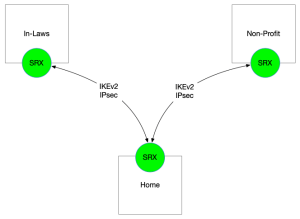
You’ve got some Juniper SRX firewalls you’ve bought for lab work & study previously, you want to make use of them with IPsec VPNs, but to do it right, you really need static IPs. So, what do you do? You fake it. You just pretend you’ve got static IPs on the tunnel endpoints and configure it up. The tunnels come up, you post up your BGP sessions between your st0.0 IFLs, announce some routes, put some reasonable security policies in place. Yes, I did have security policies in there. I was born at night, but it wasn’t last night, guys. But how did I keep it working with IPs changing all the time?

Here’s how I was solving that problem up until fairly recently. I’ve been hacking away at my DNS-o-Matic and DNS Made Easy updaters for a while now. The DME updater was much better, IMHO, as it directly updated a single, private zone that only I ever cared about rather than rely on someone else to sit in the middle and do the updates for me. Plus, I wrote the whole thing from the ground up using DME’s API docs, so I knew exactly how it worked, inside & out. No excuses for it doing anything I didn’t understand, and honestly, I’m really happy with how well it’s been working. It’s been a great opportunity to get better at Python, in particular doing things in a more “Pythonic” way, rather than trying to “just get it done”, or worse, trying to make it work the way I used to do things in Perl or PHP years ago. Is it iconic? Not even close, but it does works pretty darn well.

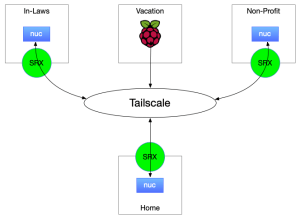
So, with these containers all ran on Intel NUCs under Ubuntu Linux at each site. There were 1 more container on each of these NUCs as part of this operation. I had a set of Telegram Bots that talked to each other as part of this network to inform each other of site IP changes. So, if HOME changed its IP, the bot at HOME sent a message to the group that included the bots for NONPROFIT and INLAWS. Those bots saw note that the IP had changed and they should go find out the new IP of HOME, so they can update their tunnel endpoints. This in turn fired off a function that used the Junos PyEZ API module to update the IPsec tunnel endpoint IPs.

Did it all work? Yes, believe it or not, this actually all worked. Was it pretty fragile and not for the faint of heart? Oh yeah, for sure. Would I recommend doing it? Not a chance. So much so that I’m not even going to share the code, apart from the DDNS updaters. The other stuff is definitely hackjob territory. So, since it was so fragile and had the tendency to break, what did I do? Well, the first few times, I drove and fixed. Which frankly, sucked. After that, I installed an OpenVPN container at each of the locations. Later, I replaced those with linuxserver/wireguard containers. But, after it all broke like twice in about a month, I’d just about had enough. I cried Uncle and decided I was going to look for some other way to do this.

And that’s when my old pal Bhupen mentioned Tailscale to me. I was already into Wireguard. So making it easier, faster, and more useful were all on my short list. Drop the tailscale client on the NUC, get it logged in announcing the local subnet into the tailnet (their name for the VPN instance), making it a “subnet router”, approve the route announcement in the portal and it’s going. I’ve got control over key expiry too. Security policy (naturally) moved from the SRX down to the tailscale gateways, but their ACL language wasn’t too difficult to wrangle. It’s all JSON, so it’s reasonably straightforward.

The new Tailscale VPNs

So, with all the scripts gone and the IPsec stripped away, what’s it all look like? Well, we also added 1 more site into the mix as well – the in-laws vacation place. They bought a place and I stuck a Raspberry Pi up there for future IOT use. Not entirely sure about the “what” yet, but they just updated the HVAC, and it’s all smart stuff, so I expect there will be instrumentation. Maybe something that spits out time series info to Influxdb or somesuch. Who knows? Or Perhaps HomeKit/Homebridge stuff. Time will tell.

In the time since I made the diagrams and wrote this up, things have also changed slightly on the homefront.. I’ve deployed a 2nd subnet router at Home. In the Tailscale docs, they say all over the place not to deploy two subnet routers with the same IP space, and generally speaking, it’s with good reason – traffic destined for those prefixes announced by those routers will be round-robin’d back and forth between them. In my case, since they’re on the same physical subnet, this is essentially ECMP routing, so no big deal. I haven’t validated if they’re really getting the hashing correct, but haven’t really noticed any ill effects yet, so I haven’t shut off the 2nd subnet router yet.

So, by dropping all the BGP sessions, IPsec tunnels, Python scripts, Telegram bots, and Docker containers, things have become much simpler, and much more stable. I’m really happy with Tailscale. So much so that I ended up subscribing at the Personal Pro tier. Great bunch of folks – can’t help but recommend them.

UPDATE: This ended up sparking a bunch of sidebar conversations. Go read what I had to say as a followup

Data Visualization and You…

Sometimes there’s data. You’ve got a bunch of it, you need to work out how to represent it in a way that not only makes sense to you, but is also appealing in some fashion. I’m going to talk about a couple of different use cases in this post, each with their own unique data presentations. First, the sensors.

I’ve got a couple of SwitchBot Meter Plus sensors around the house. One is in my office, and the other is in the garage. There isn’t much to them, small little things, battery powered. Pretty much it’s a little monochromatic LCD screen with a temp/humidity sensor and a bluetooth radio. That won’t do, on its own, of course. So, I added SwitchBot’s Hub Mini to the party. It’s a little bridge device that plugs into the house’s AC mains, and has both BT and WiFi radios inside. While I haven’t cracked it open, the device shows up with a MAC address that suggests it’s little more than an ESP32 or ESP8266 microcontroller inside. With the hub in place, connecting the sensors to the SwitchBot cloud, a really important thing happens – the sensors become accessible via SwitchBot’s REST API. So, I’m using some custom-written Python code that runs under Docker to read the sensors. Turns out it was all surprisingly easy to put the pieces together. It was also a pre-cursor to another project I went on to do, where I helped a friend using a similar sensor to control a smart plug to operate a space heater.

So, what does one do with a sensor like this? You read it, naturally. You keep reading it. Over and over at some sort of fixed interval. In my case, I’m reading it every 5 minutes, or 300 seconds, and storing the data in a database. This type of data isn’t particularly well-suited to living in a SQL database like MariaDB, Postgres, etc. This is a job for a time-series database. So, I called on InfluxDB here. It’s relatively small, lightweight, and very well understood. The Python modules for it are pretty mature and easy to work with even, so it was easy to implement as well. Total win. So, read sensor (convert C to F, since I’m a Fahrenheit kind of guy), store in database, sleep(300), do it again. Lather, rinse, repeat. Just keep on doing that for roughly the next, forever. Or until you run out of space or crash. That’s the code right there, in a nutshell.

Sensors Data Visualization

So, what are we visualizing? At the right, you can actually see what I’m graphing. The InfluxData team were nice enough to include some visualization tools right there in the box with InfluxDB, so I’m happy to take advantage of them. Many folks would prefer to use something a bit more flashy and customizable like Grafana, and that’s totally cool. I’ve done it too, even with this same dataset, and the data looks just as good. Heck, probably even looks better, but for me, it was just one more container to have to maintain with little extra value returned. The visualization tools baked into InfluxDB are good enough for what I’m after.

LibreNMS WAN Metrics

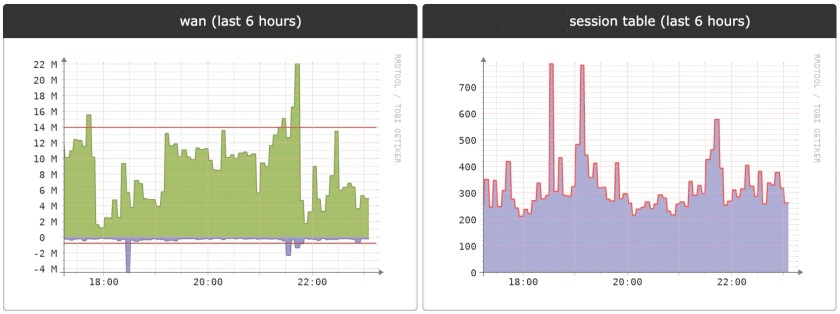
Next up? Keeping an eye on what’s up with my WAN router’s Internet-facing link. Here at the homestead, I’m running LibreNMS to keep an eye on things. Nothing nearly as custom here. It’s more off the shelf stuff here. It all runs (again) in Docker containers, and as you’d likely expect, uses SNMP to do the bulk of its monitoring duties. at the right, you can see some sample graphs I’ve got stuck to the dashboard page that give a last 6-hours view of the WAN-facing interface of my Internet router, a Juniper SRX300. You see the traffic report as well as the session table size. Within LibreNMS, I’ve got all sorts of data represented, even graphs of how much toner is left in the printer and the temperature of the forwarding ASIC in the switch upstairs in the TV cabinet. All have their own representations, each unique to the characteristics of the data.

Bottom line? Any time you’re dealing with data visualization, there is no one-size-fits-all. Spend the time with the data to figure out what makes the most sense for you and then make it so!

A Journey To A Smarter Dryer

This one was much more difficult. A lot more difficult.

If you recall from my post about the washer, I was able to pull off some fairly useful stuff without a ton of effort. Read a smart plug’s API to see how much power the washer is using to figure out when it turned on, then wait for it to turn off again, then let the fam know that the washer finished, and go take action so that the laundry doesn’t sit around for days, get funky and need to get re-washed. This was of course pretty easy simply because we were able to rely on the fact that the 120V motor in the washer draws well under 15A, the top end of the smart plugs I’m using, the Etekcity ESW15.

Sadly, when we moved into our house, we had an electric dryer. We’ve got natural gas in the house. Heck, in the same room even for the furnace and water heater even. But, back when the last washer sprang a leak and we needed a new washer in a hurry, and unfortunately at the time it was going to be months to get the matching gas dryer back in stock, so we just punted and stuck with the electric model. Sadly, this means for us this means we can’t take the same approach we did with the washer, since nobody makes a smart plug that works on 240V AC 30A circuits.

Unwilling to settle for relying on setting timers with Alexa, having to remind the kids to set timers, or just plain forgetting to do it, I started Googling about, looking for ways to go about monitoring the dryer. Monitoring energy use is the natural fit. When the dryer is in use, it’s consuming loads of energy, and when the clothes are dry, the energy use falls right off. This really shouldn’t be that hard to figure out, right? Right? Sadly, it was.

My next move was to play around with a split core current transformer clamp, and build a circuit with a burden resistor, reading the thing with a microcontroller. I read about the whole process in a handful of places online and it didn’t seem to ridiculous to build the circuit, so I sourced the parts. I got a little breadboard, some jumper wires, the resistors, capacitors, and the CT sensor clamp, and a sacrificial extension cord, which I’d use for my proof of concept test. You see, the CT clamp goes around a single conductor, not the whole cable assembly, so I needed to modify the cable slightly. Relax, the real cable was one of those “flat, side-by-side” types, so it would only mean peeling them apart, not really cutting anything. Sadly, I never made it to that phase. During my POC phase, I was able to get readings back from the sensor, but they never made sense. I was using an ESP32 microcontroller with MicroPython, so maybe that’s related. Or maybe I had a bum CT clamp. Or something else was wrong. We’ll never know, since I gave up after several evenings of bashing my head against the desk.

Failing at the “point” solution of energy monitoring, I moved on to looking at whole-house power monitoring. Hey, if we can’t kill this fly with a newspaper, let’s try a missile, right? Sense landed at the top of the pile. It had the API I was after, though they sort of keep that on the DL. Not in love with that, since those sometimes disappear. If I’m going to drop a couple of hundred bucks on something to use the API for something, it better not just disappear on a whim someday. Plus, our panel is in my home office, recessed in the wall, and there’s not exactly a clean way to get the Sense WiFi antenna back out without it looking really weird. I could make it clean, but then there’d just be a random RP-SMA antenna sticking out of my wall. Interesting decor choice. Sure to be a selling point when we sell the house some day.

Which brings me to the vibration sensor. I was reading one day, still searching, and I came across Shmoopty, and my problems were (half) solved. Sure, I had a Pi Zero W already laying around and I could have just built exactly what he had done, but what’s the fun in that? Remember, I’m already invested. It’s overkill time. So, I ordered up a couple of those 801s vibration sensors and got to work. You know, it was surprisingly hard to get one that met my needs at the time. Why? Most of the 801s units out there are analog-only. Since I’m using a Raspberry Pi, I wanted a digital output, so I didn’t need to mess around with the need for extra ADC (Analog to Digital Conversion) circuitry, just to read a simple sensor. So, I had to order from AliExpress and wait the long wait for shipping from China.

After my sensors finally turned up, I worked out the arrangement of my project boxes and so forth in the laundry room. I landed on a wall-mounted box for the Pi with a 1m pair of wires connected to the sensor, with the sensor inside another small box, which is stuck to the top of the dryer using a little strip of 3M VHB tape. Shmoopty’s Python made it easy to figure out how to read the sensor, so I was happy to be able to draw my inspiration from that. His approach is to keep it small, run on a Pi Zero W, even make it renter-friendly, while mine is more of a “go big” approach – building a Docker container to run it inside of.

Well, at the end of it all, it shares a lot of common philosophy with the plugmon tool, in that it loops infinitely, looking for start and stop conditions. Instead of watching power consumption, it’s watching for the dryer to start vibrating a lot. When that starts an appreciable amount of time, the dryer is declared to be “on”. Once it transitions back to “off”, it fires an event that causes a Telegram message to get sent to the family group chat, again, much like when the washer finishes!

Well, if you’ve made it this far, you’re ready to go check it out. So, get going and get reading. Smarten up that laundry room, report back what you did, and how you did it!